I wanted to write this website using React and various third party libraries to showcase my proficiency with them. The downside of this approach, as opposed to a simple HTML page styled with CSS, is that React is pure Javascript. By default, Javascript renders on the user's browser, which means the page takes longer to load, especially the first time a user visits. This is a poor experience for any site, but especially for a personal site which should be fast and lightweight. Therefore, I had to optimize.
• One of Next.js greatest strengths - components that are prebuilt on the server
• Prebuilt components are sent as raw HTML, meaning the browser doesn't need to decode Javascript!
• Therefore, I split up my code to make as much of it render on the server as possible:
1//SERVER COMPONENT
2export default async function ProfileCard() {
3  const t = await getTranslations("Global");
4
5  return (
6    <Card className="mt-5 sm:mt-20 rounded-4xl">
7      <CardContent className="justify-items-center border">
8        <div className="rounded-full overflow-hidden h-50 w-50">
9          <Image
10            className="object-cover w-full h-full"
11            src="/images/profile_picture.webp"
12            alt="Profile picture"
13            height={400}
14            width={400}
15            priority
16          />
17        </div>
18        <Typography className="flex pt-5" variant="titleFont">
19          {t("name")}
20        </Typography>
21        <Typography className="flex" variant="titleFont">
22          {process.env.NEXT_PUBLIC_EMAIL}
23        </Typography>
24        <Typography className="flex" variant="titleFont">
25          {process.env.NEXT_PUBLIC_PHONE}
26        </Typography>
27      </CardContent>
28      <CardActions className="border">
29        <div className="flex w-full justify-between">
30          <LinkedInButton />
31          <ResumeWrapper /> //CLIENT COMPONENT
32          <GithubButton />
33        </div>
34      </CardActions>
35    </Card>
36  );
37}
• MUI components can be rendered on the server by using a special provider in the root layout.tsx file.
1
2export default async function RootLayout({
3  children,
4}: Readonly<{
5  children: React.ReactNode;
6}>) {
7  return (
8    <html
9      lang="en"
10      className="h-full w-full antialiased"
11      suppressHydrationWarning
12    >
13      <body className="h-full w-full flex flex-col">
14        <AppRouterCacheProvider> //PROVIDER
15          <main>
16            {children}
17          </main>
18        </AppRouterCacheProvider>
19      </body>
20    </html>
21  );
22}
• next-intl can fetch translations on the server:
1
2export default async function RootLayout({
3  children,
4}: Readonly<{
5  children: React.ReactNode;
6}>) {
7  const locale = await getCookie(LOCALE_COOKIE_NAME, DEFAULT_LOCALE);
8  const messages = await getMessages({ locale });
9  const architectureMessages = pick(messages, ["Architecture"]);
10  //on the client, you would use the useTranslations() hook instead
11
12  return (
13    <NextIntlClientProvider messages={architectureMessages}>
14      <div className="h-full w-full flex flex-col">{children}</div>
15    </NextIntlClientProvider>
16  );
17}• Load javascript modules and React components only when they're needed
• Reduces first contentful paint time
• Good for content that needs to be conditionally shown - for example the settings drawer which doesn't render until the user opens it.
1const SettingsDrawer = dynamic(() => import("../settings/settingsDrawer"));• Bundled with static assets, improving privacy and performance
• Preloaded fonts prevent flashes of unstyled text
• No layout shift - fallback font has same font size
1const ptSerif = localFont({
2  src: "../../public/fonts/PTSerif.ttf",
3});• Automatically converts images to optimal file type - from PNG to WebP for example
• Next.js can either lazy load the images when they're needed or prefetch them
• Prevents layout shift while images are loading
1<div className="rounded-full overflow-hidden h-50 w-50">
2  <Image
3    className="object-cover w-full h-full"
4    src="/images/profile_picture.webp"
5    alt="Profile picture"
6    height={400}
7    width={400}
8    priority
9  />
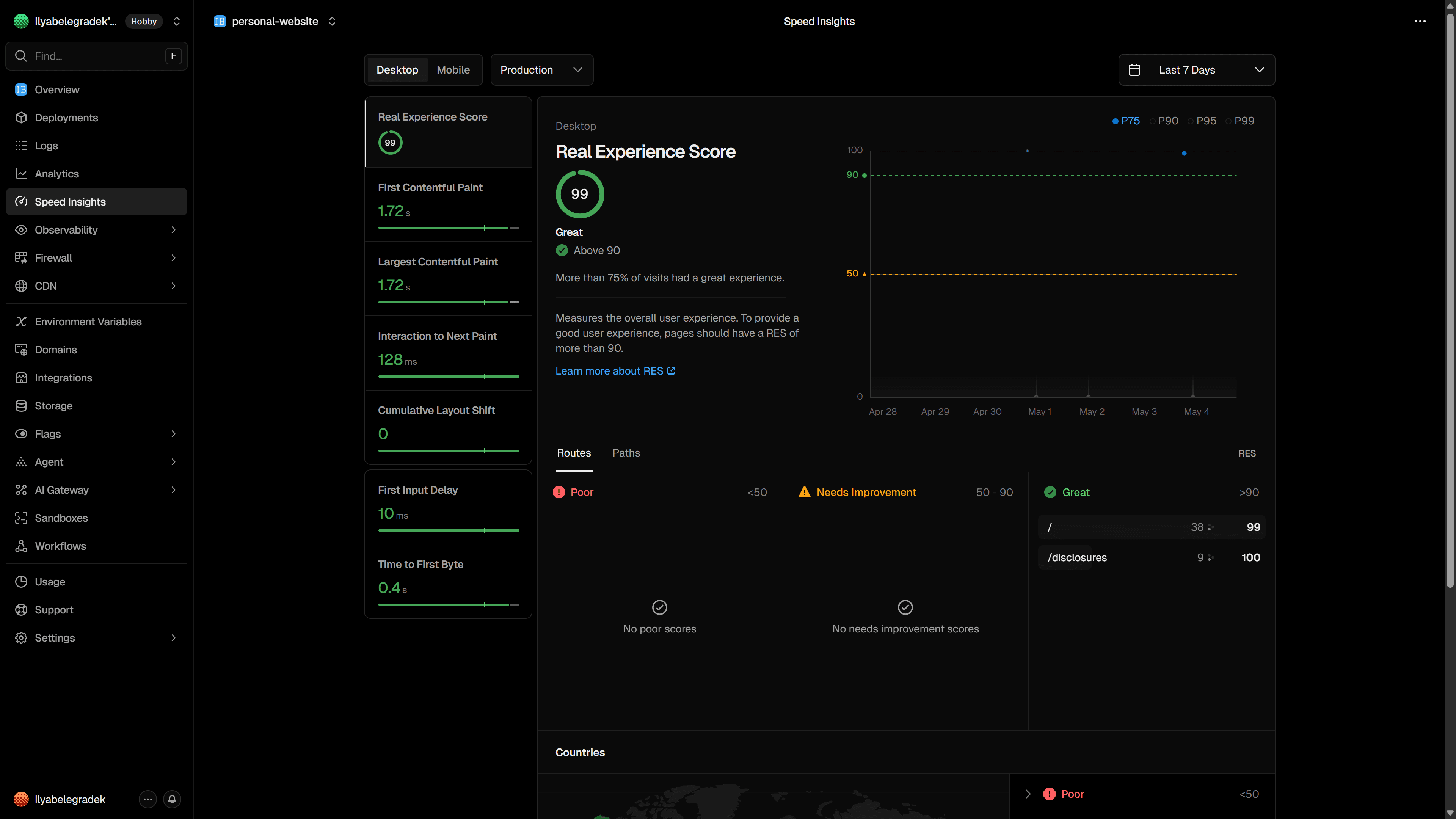
10</div>• Provided by Vercel - the creators of Next.js and the hosting provider I used to deploy my website
• Injected in the root layout.tsx file, tracks anonymized speed statistics of real users
• Good to see how the website is actually performing in production
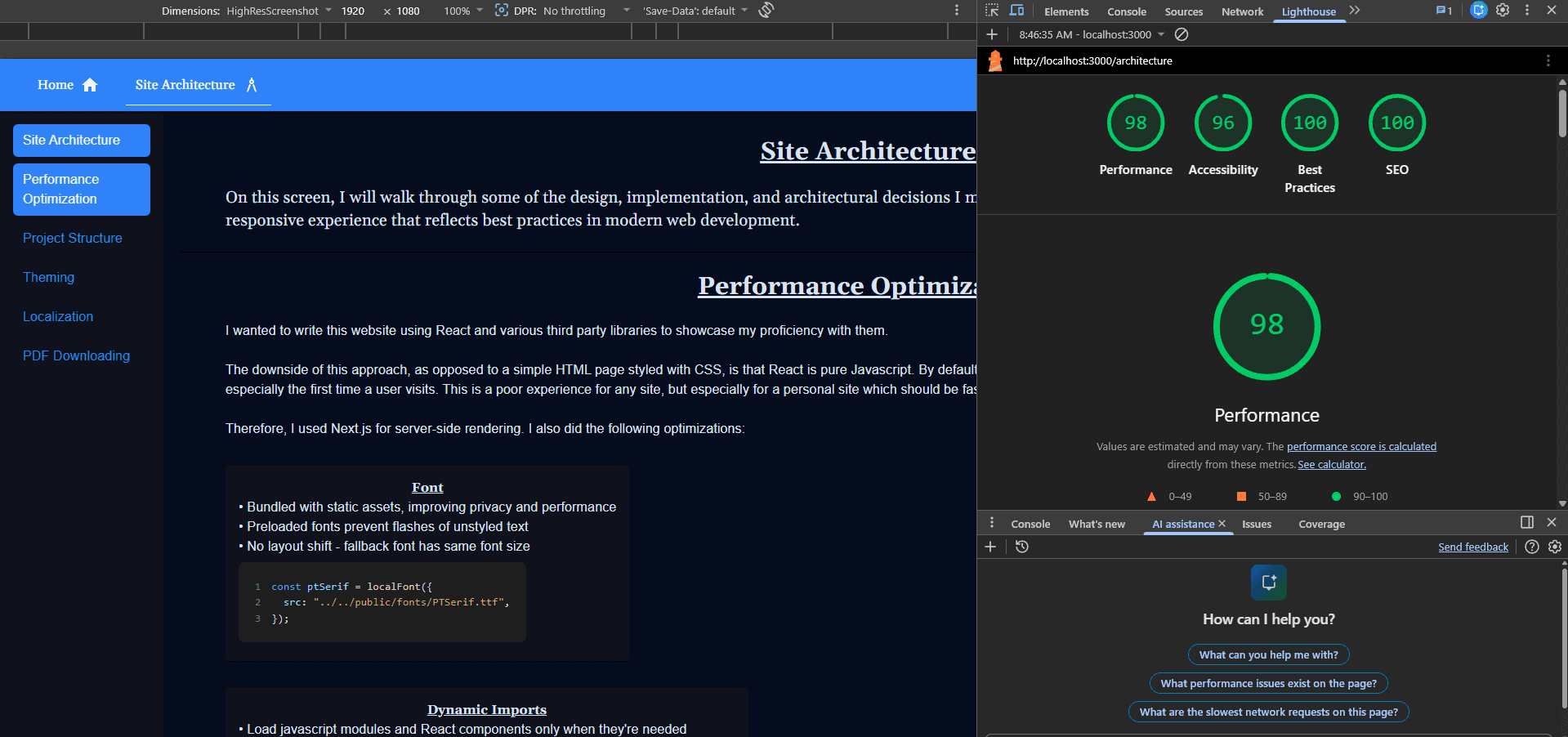
• Google Chrome has a built-in performance test.
• Tested on both desktop and mobile devices.
• Mobile tests will throttle your network to simulate a real user on their phone.
My codebase needed to be intuitive to navigate so I can easily make updates and modifications. It also needed to be scalable, readable, and follow best practices to demonstrate my competency as a developer.
public
src
package.json
Click a folder to see its children and a short description. Not every directory or file is represented - that felt excessive!
To configure the theme, all I had to do was create a ThemeProvider and give it a theme object with light and dark palettes. Then I used it in my root layout.tsx file and I was ready to go!
1//Wraps the application code in the root layout.tsx file
2export default function MUIThemeProvider({
3  children,
4}: Readonly<{
5  children: React.ReactNode;
6}>) {
7  const customTheme = createTheme({
8    colorSchemes: {
9    //light mode
10      light: {
11        palette: {
12          primary: {
13            main: "#2f82f7",
14            contrastText: "#EDF2FA",
15          },
16          background: {
17            default: "#e4f2ff",
18            paper: "#DDE8FD",
19          },
20          text: {
21            primary: "#0d121b",
22            secondary: "#383D47",
23          },
24        },
25      },
26      //dark mode
27      dark: {
28        //same palette object as light mode - just with different colors
29      },
30    },
31    cssVariables: {
32    //enables manual dark mode toggling
33      colorSchemeSelector: "class",
34    },
35    //inject my custom font to use in MUI components
36    typography: {
37      bodyFont: {
38        fontFamily: "ibmPlexSans",
39      },
40    },
41  });
42  return (
43    <ThemeProvider theme={customTheme}>
44      <CssBaseline />
45      {children}
46    </ThemeProvider>
47  );
48}
MUI provides many components with many configuration options. The components use my MUI theme and greatly reduce the amount of boilerplate code I have to write. Best of all, these components automatically use the colors I configured in my ThemeProvider.
1//MUI Drawer component
2import Drawer from "@mui/material/Drawer";
3
4export default function SettingsDrawer(props: {
5  settingsDrawerOpen: boolean;
6  setSettingsDrawerOpen: React.Dispatch<React.SetStateAction<boolean>>;
7}) {
8  const { settingsDrawerOpen, setSettingsDrawerOpen } = props;
9
10  //a settings drawer that can be toggled open and closed
11  return (
12    <Drawer
13      open={settingsDrawerOpen}
14      onClose={() => setSettingsDrawerOpen(false)}
15      anchor="right"
16    >
17      //render any React content inside the drawer
18    </Drawer>
19}1"use client";
2//MUI imports
3import Tab from "@mui/material/Tab";
4import Tabs from "@mui/material/Tabs";
5
6import { disclosureTabList } from "@/src/constants/disclosuresConstants";
7import { useTranslations } from "next-intl";
8import { useState } from "react";
9import PrivacyContent from "./privacyContent";
10import dynamic from "next/dynamic";
11const AttributionContent = dynamic(() => import("./attributionContent"));
12
13export default function DisclosuresContent() {
14 const t = useTranslations("Disclosures");
15 const [disclosureTabValue, setDisclosureTabValue] = useState(0);
16 const handleChange = (event: React.SyntheticEvent, newValue: number) => {
17 setDisclosureTabValue(newValue);
18 };
19
20 //render a pair of tabs and conditionally show different content based on which tab is selected
21 return (
22 <>
23 <Tabs value={disclosureTabValue} onChange={handleChange}>
24 {disclosureTabList.map((tab) => (
25 <Tab label={t(tab)} key={tab} />
26 ))}
27 </Tabs>
28 {disclosureTabValue == 0 && <PrivacyContent />}
29 {disclosureTabValue == 1 && <AttributionContent />}
30 </>
31 );
32}These examples merely scratch the surface of what MUI is capable of: it's a powerful, constantly evolving framework used by Costco, Marriott, Medium, and more. It was useful while developing this website and I'm excited to keep learning and using it in the future.
To store the strings, I create json files for each language. The nested json objects allow a screen to only fetch the strings it needs. For example, this screen is using the 'Architecture' strings.
1{"Global": {
2    "name": "Ilya Belegradek",
3  },
4  "Architecture": {
5    "hello_world": "Hello world!",
6  },
This is my request.ts file that actually configures the strings based on the locale the user selected.
1import { getRequestConfig } from "next-intl/server";
2  import { cookies } from "next/headers";
3  import {
4    DEFAULT_LOCALE,
5    LOCALE_COOKIE_NAME,
6  } from "../constants/localeConstants";
7
8  export default getRequestConfig(async () => {
9    const store = await cookies();
10    const locale = store.get(LOCALE_COOKIE_NAME)?.value || DEFAULT_LOCALE;
11
12    return {
13      locale,
14      messages: (await import(`../../public/strings/${locale}.json`)).default,
15    };
16  });
Then I wrap a layout file for a screen in the next-intl provider and I'm ready to go! All I have to do is call useTranslations() - or await getTranslations() in a server component - and I can fetch any string by its key. When the locale switches, it automatically pulls the correct string from the new json.
1export default async function RootLayout({
2    children,
3  }: Readonly<{
4    children: React.ReactNode;
5  }>) {
6    const locale = await getCookie(LOCALE_COOKIE_NAME, DEFAULT_LOCALE);
7    const messages = await getMessages({ locale });
8    const architectureMessages = pick(messages, ["Architecture"]);
9
10    //pass only the necessary messages to the provider
11    return (
12      <NextIntlClientProvider messages={architectureMessages}>
13        <div className="h-full w-full flex flex-col">{children}</div>
14      </NextIntlClientProvider>
15    );
16 }• The library uses a React Native like syntax that's easy to pick up for any React developer.
• Custom components - Text, View, etc. - are used to organize and render content on the PDF
• StyleSheets are used to apply CSS like styling to those components
• Page will output to a standard single page in the PDF - overflowing onto the next one if I run out of room.
1import { Document, Page, Text, View } from "@react-pdf/renderer";
2
3export default function ResumePDF(props: {
4  t: ReturnType<typeof useTranslations>;
5}) {
6  const { t } = props;
7
8  return (
9    <Document>
10      <Page size="A4" style={resumeStyles.page}>
11        <View style={resumeStyles.header}>
12          <Text style={resumeStyles.name}>{t("name")}</Text>
13        </View>
14      </Page>
15    </Document>
16  )
17}1import { StyleSheet, Font } from "@react-pdf/renderer";
2
3//custom font support
4Font.register({
5 family: "titleFont",
6 src: "/fonts/PTSerif.ttf",
7});
8
9export const resumeStyles = StyleSheet.create({
10 page: {
11 flexDirection: "column",
12 padding: 8,
13 fontFamily: "titleFont",
14 fontSize: 11,
15 },
16 header: {
17 flexDirection: "row",
18 justifyContent: "space-between",
19 borderBottom: 2,
20 borderBottomColor: "black",
21 borderBottomWidth: 1,
22 marginBottom: 4,
23 paddingBottom: 2,
24 },
25 name: {
26 fontSize: 32,
27 fontWeight: 700,
28 textAlign: "center",
29 flex: 1,
30 paddingTop: 8,
31 paddingLeft: 20,
32 },
33All I had to do was install the npm library, make this reusable React component, and I was ready to go. Every chunk of code on this screen was displayed with this component.
1import { Prism as SyntaxHighlighter } from "react-syntax-highlighter";
2import { vscDarkPlus } from "react-syntax-highlighter/dist/esm/styles/prism";
3
4export default function CustomCodeBlock(props: { code: string }) {
5  const { code } = props;
6
7  return (
8    <SyntaxHighlighter
9      language="typescript"
10      style={vscDarkPlus}
11      showLineNumbers={true}
12      customStyle={{
13        borderRadius: "8px",
14        padding: "20px",
15        maxWidth: "fit-content",
16      }}
17      wrapLongLines={true}
18    >
19      {code}
20    </SyntaxHighlighter>
21  );
22}